
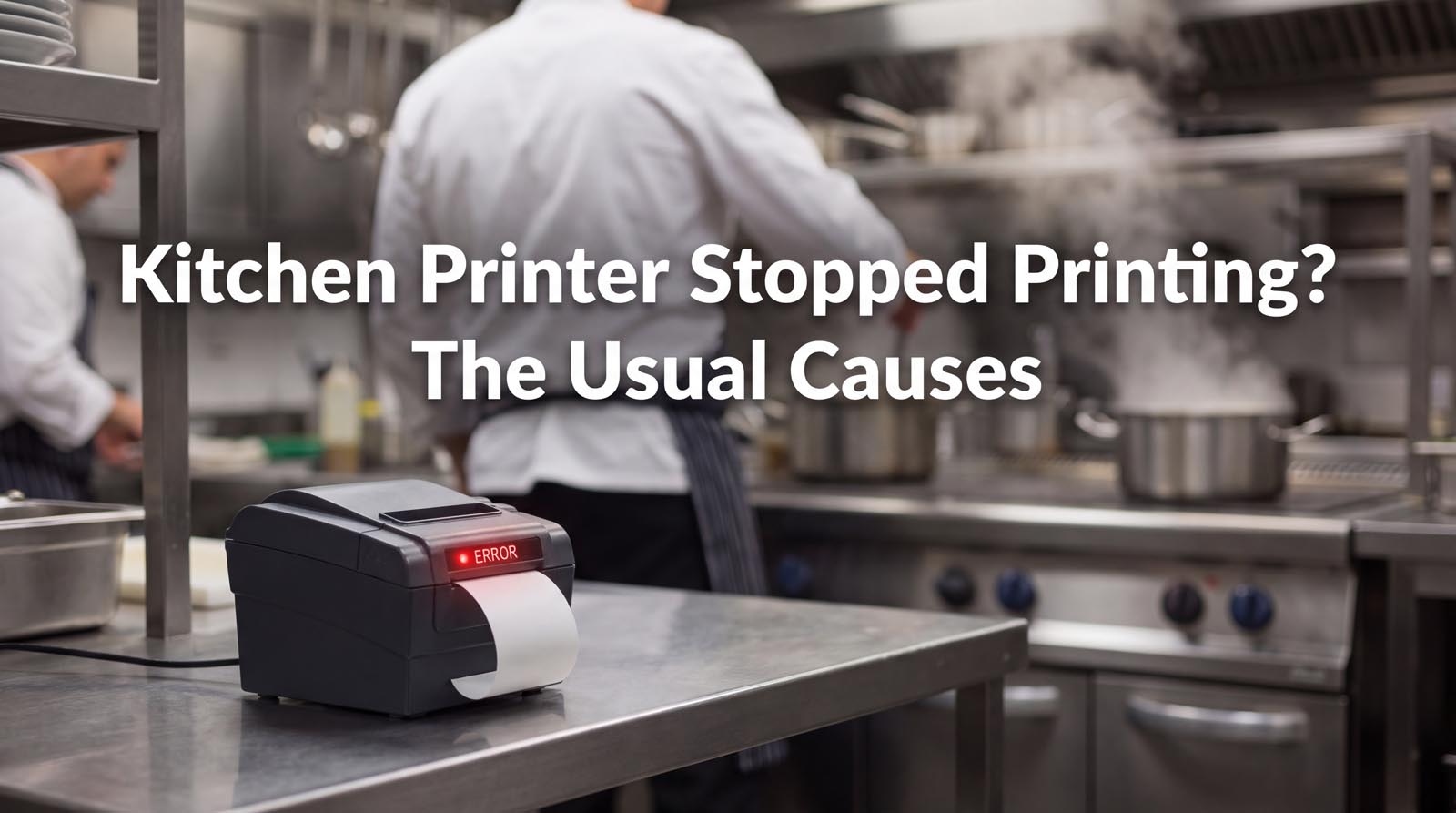
The worst failure in a kitchen is not the printer that breaks. It is the printer that stops quietly and lets everyone carry on believing it is working.
A broken printer gets fixed in five minutes, because somebody notices. A silent one costs you a customer, a refund and a review — and you only find out when the phone rings and somebody asks where their food is.
If you are running online orders through a printer, these are the ways it goes quiet, roughly in order of how often they actually happen.
The paper ran out
The most common one by a distance, and the least interesting.
Thermal paper gives you a warning: most rolls have a coloured stripe printed along the last metre or so. It is easy to miss during service and obvious the moment you know to look for it.
Two habits fix this permanently. Change the roll when the stripe appears rather than when it runs out, and keep the spare where the printer is, not in the store room. A roll costs very little. A missed order does not.
The printer went to sleep, or lost the network
Network printers get an address from your router. Routers reboot, addresses get reassigned, and the printer that was at one address in the morning can be at another by evening — while the thing sending it jobs is still politely talking to the old one.
The fix is to give the printer a fixed address. Most routers can reserve one for a specific device, usually under DHCP reservation or static lease. Ten minutes once, and it never moves again.
Bluetooth printers have a related problem: they drop the pairing when they lose power, or when something else pairs with them. If a printer is shared between a phone and a laptop, expect trouble.
The phone killed the app to save battery
This is the one that catches people out, because nothing looks wrong at all.
Android phone makers — Samsung, Xiaomi, Huawei and Honor are the usual suspects — ship aggressive battery managers that close background apps they decide you are not using. An app sitting quietly watching a mailbox looks exactly like an app doing nothing. So it gets closed, and the screen still shows whatever it showed before.
If a phone is doing a job, take it out of battery optimisation. It is usually under Battery, then a setting called something like “unrestricted”, “don’t optimise”, or “allow background activity”. The wording differs on every brand, which is itself a clue to how much they want you to find it.
And keep the phone plugged in. A phone doing a job is not really a phone any more, it is a small appliance.
The mailbox stopped letting the app in
If your order printing works off email — as ours does — then the mailbox is part of the machinery. A password change, a revoked app password, or a provider tightening its security settings will stop the app signing in.
The failure here is honest at least: the app knows immediately that it cannot sign in. What matters is whether it tells you, or just sits there.
The principle: a system that fails silently is worse than no system
Every item above is ordinary. Paper runs out, routers reboot, passwords change. None of it is avoidable and none of it is anybody’s fault.
What decides whether it hurts is what happens next. If a shop knows its printer is not printing, somebody checks a screen and nothing is lost. If it does not know, the shop keeps promising food it never started cooking.
That is why the design goal is not “never fail”. It is never fail quietly.
In practice that means three things, and they are worth asking of any tool you use for this, not just ours:
- Does it tell you when a print fails? Not a log you would have to go looking for — an alert, on the device, at the moment it happens.
- Does it keep the order? A failed print must leave the order sitting there, clearly marked as not printed, so it can go out again with one tap. An order that exists only as a piece of paper that never appeared is gone.
- Can you tell at a glance that it is alive? A screen that says “monitoring” and lists today’s orders answers the question from across the room. A blank screen answers nothing.
The five-second check that catches almost everything
Whatever you are running, build one habit: look at the last ticket time.
If your printing setup shows you when the last order came in, then a glance tells you whether the whole chain — shop, email, app, printer — was working a few minutes ago. It is quicker than any diagnostic and it needs no technical knowledge at all.
Do it when you open. Do it at the start of the evening. That is enough.
How we handle it
OrderPrint alerts you when a print fails, names the printer and the order, and leaves the order in the list marked as not printed so it can be reprinted with one tap. Nothing is thrown away and nothing is assumed to have worked.
It also checks the mailbox every thirty seconds rather than waiting to be told about new mail — which sounds like a small detail, but it means the connection is never idle long enough to go stale without anybody noticing. A quiet night looks exactly like a busy one, from the app’s point of view.
There is more on failure handling and what to check on our help page, and if you are choosing hardware, our notes on which thermal printers work cover the connection choices above. There is also a comparison of the four ways to get orders onto paper, and where each one fits.