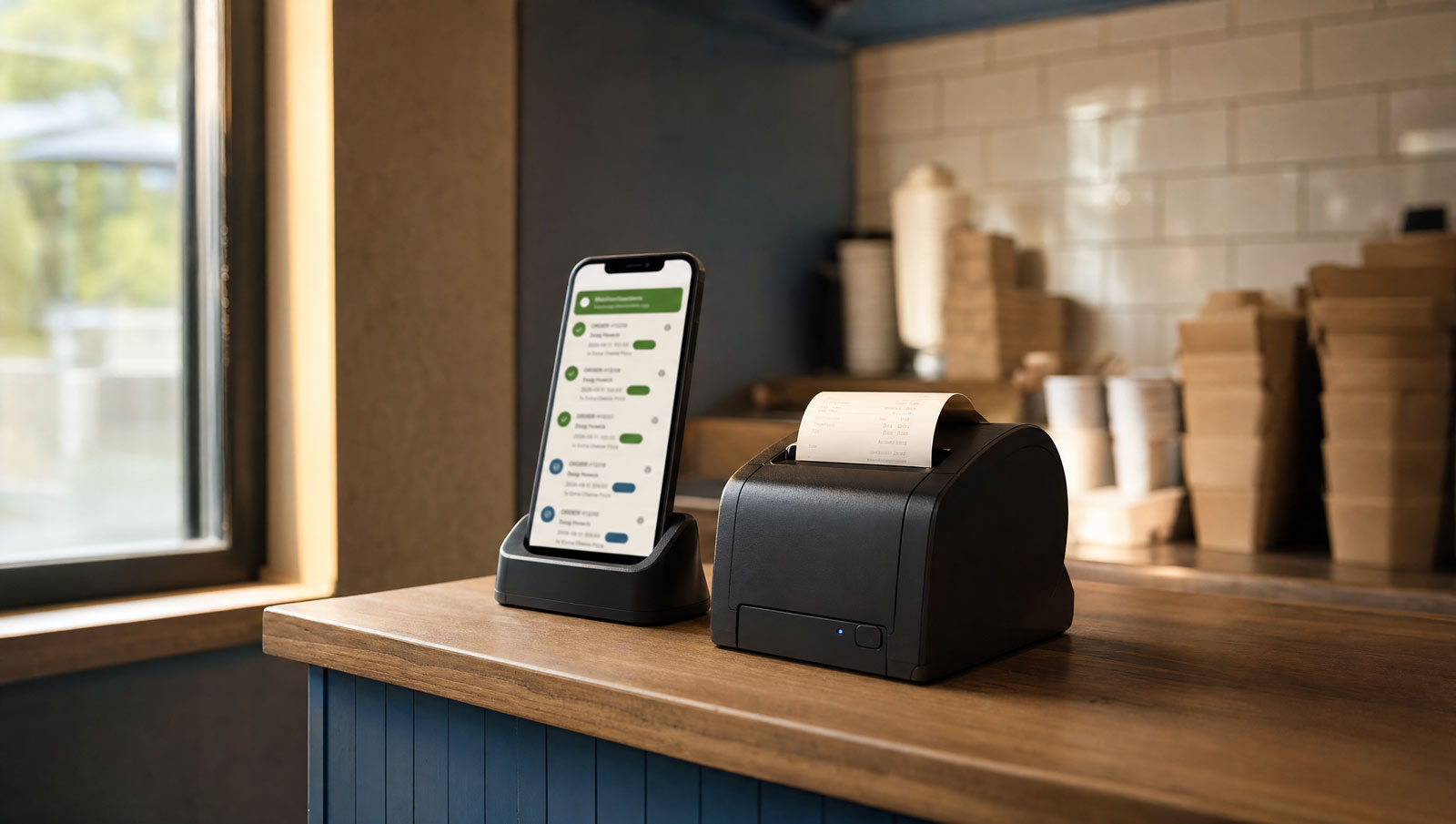
WooCommerce will happily print an order. Getting it to print by itself, with nobody clicking anything, is a different problem – and it is the one that matters in a kitchen, because during service nobody is looking at a screen.
Here is what automatic actually requires, and how to do it from a phone. If you just want the short version for your shop, there is a WooCommerce setup page that covers it.
What “automatic” actually means
For an order to print with no human involved, three things have to be true. Something has to know an order arrived. Something has to be switched on at the moment it arrives. And that thing has to speak ESC/POS, the command language thermal receipt printers use.
Most WooCommerce printing plugins fail the second and third tests. They generate an invoice or a packing slip as HTML or PDF and hand it to a browser. That is fine for A4 paperwork. It is not a kitchen ticket, and it needs somebody to press print.
The three routes
A computer plus a print service. A small program runs on a PC in the shop and a service connects WooCommerce to it. Flexible, handles several printers, and it means a computer has to be on all day, every day.
A cloud-connected receipt printer. The printer has its own internet connection and receives jobs directly. The most robust option on this list, and the most expensive – you are buying a printer at a premium and locking yourself to that vendor’s models.
Read the order email. WooCommerce already emails you every time an order comes in. A device watching that mailbox can parse the email and print it. No plugin, nothing installed on your site, and it keeps working if you later add another sales channel.
That third route is the one you can do from a phone, so it is the one this post is about. There is a fuller comparison of all of them, including where the other two win, on our ways to print page.
Setting it up from the email
Decide which mailbox. Point WooCommerce’s order emails at an address used for nothing else. Your own inbox stays private, the phone by the till only ever sees orders, and revoking that access later changes nothing else. In WooCommerce it is under Settings → Emails → New order → Recipient(s), and that field takes more than one address, so you can keep your own copy.
Get an app password, not your real one. Gmail, Outlook, Yahoo and most hosts stopped letting apps sign in with the password you type into a website. You need an app password – a separate one that works for a single app and can be revoked without changing your real password. For Gmail you must switch on 2-Step Verification first, or the option does not appear at all. We wrote that up separately in why your email password will not work in an app.
Choose the printer. Any thermal receipt printer that speaks ESC/POS over Bluetooth or your network, in 58mm or 80mm. Two things catch people out: a Bluetooth LE-only printer will pair with the phone perfectly and then never print, because BLE is not the serial profile receipt printers use; and a label printer is not a receipt printer, and no setting will change that. Our notes on which thermal printers work cover what to check before you buy.
Put the phone somewhere sensible. Plugged in, screen on, near the printer. Android will eventually stop a background app on a phone whose screen is off, and that is the single most common cause of “it worked for a week and then stopped”.
The WooCommerce details that actually bite
If you are building this yourself rather than using an app, these cost real debugging and are barely documented anywhere.
Parse the HTML part, not the plain text part. WooCommerce sends both. Ordinary advice says prefer plain text; here that is wrong, because WooCommerce omits the currency symbol from the plain-text version. You get 18,00 instead of R18,00, with no way to know which currency that is.
The quantity separator is ×, U+00D7 – not the letter x. Matching on “x” finds nothing in a real order, or worse, matches inside a product name like “Pack of 6x Rolls”.
WooCommerce changed its order-email template. Between 10.3.8 and 11.0.0 the structure moved: product names went from bare text to a heading, the item-meta class changed, the billing heading changed, and the customer-note row changed. Build against one and you silently drop every item on the other.
Never key on the heading text. The subject and heading of that email are free-text fields a shopkeeper can edit in WooCommerce’s settings. Anything depending on the words “New order” breaks the day someone rewords their own email. Key on the structure instead.
Stock WooCommerce sends no order status. If you see “Processing” in your order emails, that comes from a customised template, not from WooCommerce itself.
WooCommerce Food adds more. If you run it, the email also carries the order method, requested date and time, table number, add-ons and branch – and for a delivery order the billing address is the destination, because the plugin collects the delivery address at checkout and sends no separate shipping block.
The question nobody asks
Not “does it print”, but how would I know if it stopped?
Every route above fails silently. Paper runs out. A Bluetooth printer goes to sleep and accepts a job it never prints. An app password gets revoked. Android kills a background process overnight. Every one of those looks exactly like a quiet night.
A printer that breaks loudly gets fixed in five minutes. One that stops quietly costs you a customer, a refund and a review – and you find out when the phone rings.
So whatever you set up, make that the question you ask of it. If the honest answer is “a customer would tell me”, that is the actual problem to solve.
If you would rather not build it
That is what we make. OrderPrint runs on an ordinary Android phone, watches the mailbox your WooCommerce order emails already arrive in, and prints each one as a kitchen ticket to a Bluetooth or network thermal printer. No computer, no cloud printing service, nothing installed on your site.
It handles everything above – the HTML part, the ×, both template versions, WooCommerce Food’s extras – and it tells you when a ticket does not come out.
Here is the whole setup, start to finish, in under three minutes:
Free for the first 100 orders a month, no account and no card.