
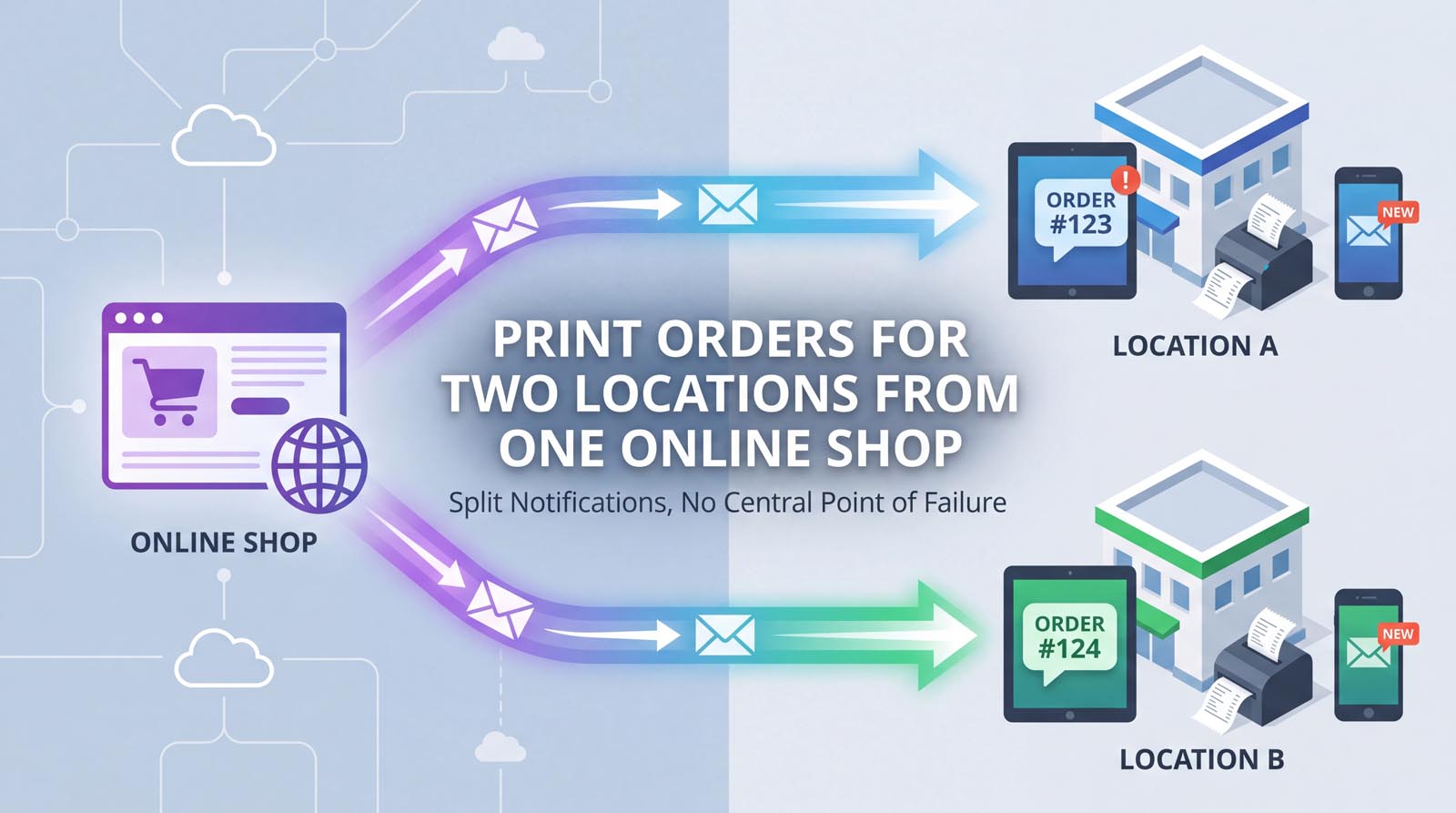
You have two branches, one online shop, and one problem: orders for both arrive in the same place, and each kitchen only wants its own.
Most people go looking for a printing tool clever enough to sort them out. That is the harder road. The trick is to stop asking the printer to decide, and let your shop decide instead – because your shop already knows which branch an order is for, and it can put that order in a different mailbox before anything else gets involved.
Then every branch needs nothing smarter than a phone that watches one mailbox.
The pattern: one mailbox, one phone, per branch
Concretely, for two branches:
- Branch A’s orders go to orders-a@yourshop.co.za. A phone at branch A watches that mailbox and prints what arrives.
- Branch B’s orders go to orders-b@yourshop.co.za. A phone at branch B does the same.
Neither phone knows the other exists. Neither needs a rule, a filter, or a routing table. Each one simply prints everything it receives, which is the simplest thing a printing setup can possibly do – and simple things break less.
It has a second benefit that is easy to miss: the branches are independent. If branch A’s printer jams, or its phone dies, or its wi-fi drops, branch B carries on without noticing. A central system that routes everything is a central system that can take everything down.
The whole question, then, is how to split the notifications. Here is how on each platform.
Shopify
Shopify can send order notifications to a specific address for a specific location, natively.
Go to Settings → Notifications → Staff notifications, then Add recipient. Choose an email address, enter it, and – if you have the point of sale channel installed – pick the location it applies to. Repeat for each branch; one notification per location-and-address pair.
The location selector is genuinely there when you add a recipient – we have checked. What we cannot tell you is how it behaves on your setup, particularly if your branches come from a pickup or delivery app rather than Shopify’s own location list.
So do this before you buy a second phone: set up the two recipients, place one test order for one branch, and check which mailbox it lands in. It takes five minutes, and it is the difference between each kitchen seeing its own orders and both kitchens seeing everything – which is the sort of thing you find out on a busy Friday if you do not find it out now.
If it does not split the way you need, use Shopify Flow instead. It is free on all plans. Build a workflow that triggers on order creation, checks a condition – the location, a delivery method, an order attribute – and sends an internal email to the right address. Flow can read order attributes directly, so it copes with setups that the native filter does not.
One thing to know about the Flow route: the email it sends is one you compose, so it will not look like Shopify’s standard order notification. A printing app that has been built to read the standard email will fall back to printing a plainer ticket. Worth checking what comes out before you rely on it. There is a fuller setup walkthrough on our Shopify order printing page.
WooCommerce
Plain WooCommerce sends the new-order email to a single admin address, and there is no built-in way to vary it by branch. You need something on top.
If you are running WooCommerce Food, this is already solved: locations are a taxonomy, and each location can carry its own order email address. Set each branch’s address there and the split happens without any extra plugin at all.
Without it, look at one of the plugins that routes the order email by category, product or location. They are common, because plenty of businesses need orders to reach a particular supplier or department rather than one inbox. Our WooCommerce order printing page covers the rest of the setup.
Wix
Wix Restaurants can send order notifications to additional addresses, and its automations can send an email when an order comes in. Whether you can vary the address by location depends on how your locations are set up, so – as with Shopify – send a test order and watch where it arrives before buying a second phone. The Wix order printing page has the single-location setup in full.
What you need at each branch
Very little, and that is the point.
- A phone. An old one is fine. It sits by the till, plugged in.
- A thermal receipt printer, Bluetooth or on the network.
- That branch’s mailbox, and an app password for it.
If a branch wants a kitchen ticket and a counter copy, that is two printers on the one phone, which is a paid feature on our app and works the same at every branch.
When this is the wrong answer
Honesty is worth more than a sale here, so: this pattern suits branches that are genuinely separate places, each with its own counter and its own printer.
It is not the right answer if you need one location to route different orders to different printers by rule – kitchen versus bar, food versus drinks, by product category. That is real conditional routing, and it belongs in a tool built for it, usually a print service with rules plus a small machine at the site running it. Our app prints every order it receives to every printer you have enabled; it does not choose between them.
Nor does it help if your platform genuinely cannot split notifications. Test that first – it is ten minutes and one test order, and it decides the whole approach.
Cost, roughly
Per branch: a phone you probably already have, a thermal printer, and a subscription. Our plans cover one phone each, so three branches means three subscriptions – and three independent setups that cannot take each other down.
Compare that with a cloud printer per site, or a computer per site running a print service, and the arithmetic is usually comfortable.
OrderPrint watches one mailbox and prints every new order to a thermal receipt printer. The first 100 orders a month are free on each phone, so you can prove the whole arrangement at one branch before committing to any of it. There is more on setup on our help page.